TideCast User Guide
Read the tide, navigate the days, and set it up in a couple of minutes.
Contents
1. Getting started
- Install TideCast from the Garmin Connect IQ store onto your watch.
- Add it to your widget glance loop (the carousel you reach by pressing UP/DOWN from the watch face), if it isn't already.
- Open it once with your watch outdoors or recently synced - TideCast needs a location to find your nearest tide station. It uses your watch's GPS or Garmin Weather automatically.
2. The views
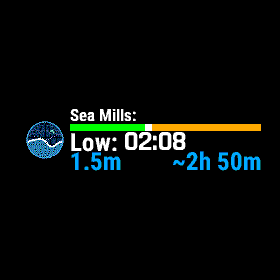
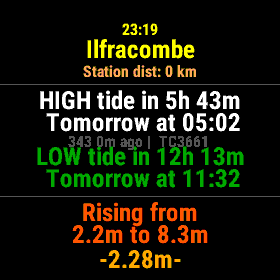
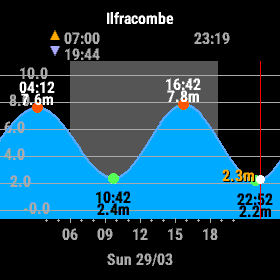
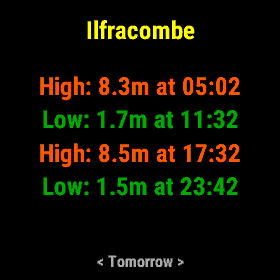
Glance
The compact preview in your widget loop - station name, the next tide, time and height, and a progress bar showing how far through the current tide you are (red rising, blue falling).
Text view (the home screen)
Open the widget for the full picture: the next high and low with live countdowns, whether the tide is rising or falling, the height range, and the current interpolated height.
Tide chart
A full-day tide curve with sunrise/sunset bands, height gridlines, high/low labels, and a real-time "now" line showing the current height. (Chart-capable watches only; lower-memory watches use the day list instead.)
Day list
Every tide event for a day, with heights and times in the station's local time.
3. Buttons & gestures
TideCast browses time as you scroll. From the home screen:
- DOWN (or swipe up on touch watches) - forward in time: today's full tide list, then tomorrow, then the rest of the week.
- UP (or swipe down) - back in time, including yesterday's tide.
- SELECT / START - switch between the text view and the tide chart (on chart-capable watches), or open the day-by-day list (on others).
- BACK - return to today, or exit the widget.
- MENU (hold UP, or the menu button) - open the on-watch settings, including Activate Plus.
4. Settings in Garmin Connect
Most TideCast settings live in the Garmin Connect Mobile app on your phone (not on the watch). This trips a lot of people up, so here's exactly where to look:
- Open the Garmin Connect app.
- Go to your device (the watch) - via ≡ More → Garmin Devices, or the device shortcut on the home screen.
- Tap Connect IQ Apps → Widgets (or "Activity, Apps & More").
- Find TideCast and tap the gear / Settings icon next to it.
You can also reach it from the Connect IQ Store app → My Device → TideCast → Settings.
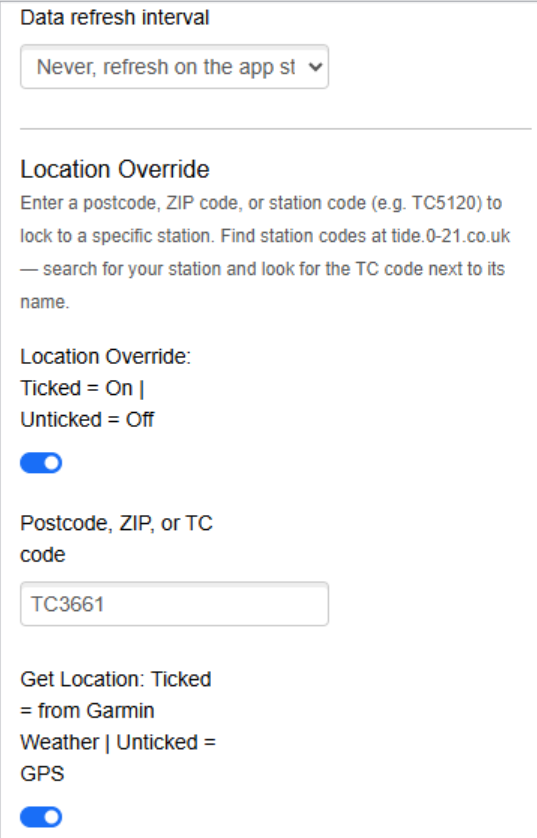
What each setting does
- TideCast Plus - a status line: "Get Plus: tide.extreme-media.co.uk/plus" when free, or "Plus active" once subscribed.
- Data refresh interval - how often TideCast fetches fresh tides in the background (15 minutes to 5 days). Tides change slowly, so a long interval saves battery.
- Location Override PLUS - turn this on and enter a postcode, ZIP, or station (TC) code to lock the watch to a specific station instead of your current location. Requires Plus; on free, your watch always uses the nearest station.
- Get Location - ticked uses Garmin Weather's location; unticked uses your watch's GPS.
- Time Display - show tide times in the station's local time (default) or your device time.
- Default Screen - open to the text view or the tide chart.
- Show cache age - display how old the data is and where your location came from.
5. TideCast Plus & activation
TideCast Plus (£3.99/year) unlocks the full 7-day forecast and custom locations. Activating it takes about a minute and needs no account or password - your watch is your licence.
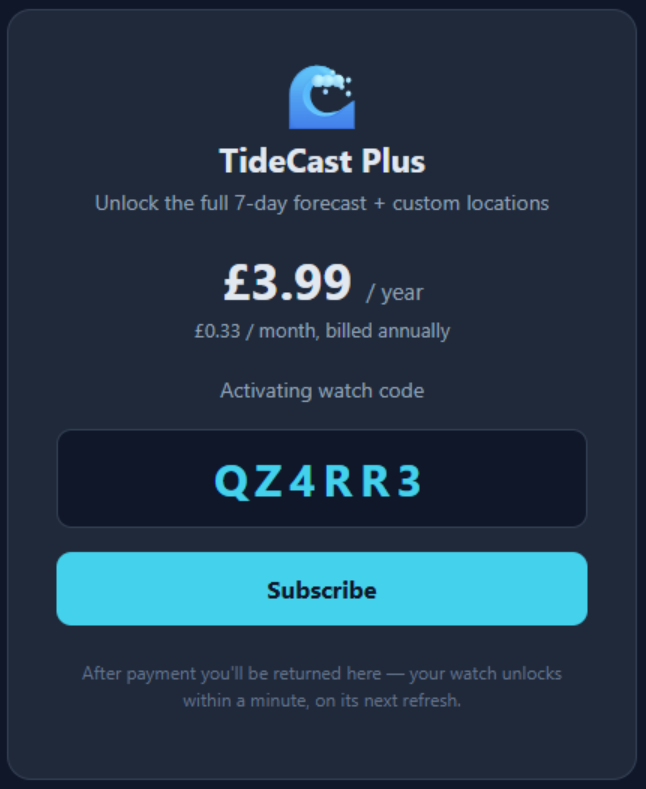
- On the watch: open TideCast → press MENU → Activate Plus.
- The watch shows a 6-character code and the address tide.extreme-media.co.uk/plus. If your phone has the Connect IQ app open, it may offer to open the page automatically.
- On any device, go to tide.extreme-media.co.uk/plus, enter the code, and complete the secure Stripe checkout.
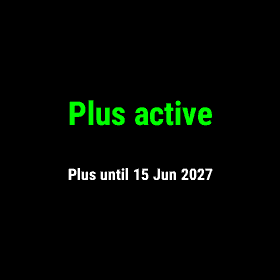
- Back on the watch, Plus unlocks within a minute on the next data refresh - the menu will then read "Plus active".
6. Custom stations & TC codes PLUS
With Plus you can view tides for any station, not just where you are - handy for a coast you're travelling to.
- Open the web tool at tide.extreme-media.co.uk and search for your station.
- Note its short station code (e.g. TC3661), shown next to the name.
- In TideCast's settings (above), turn on Location Override and type that code - or a postcode/ZIP - into the field.
The same web tool is a great way to check tides on a big screen, free.
7. Troubleshooting
"Waiting for data" / no tides
TideCast needs a location and a phone/Bluetooth connection to fetch data. Make sure your watch is connected, then open the widget. Outdoors, a quick GPS fix helps. You can also force a refresh: MENU → Request Tide data refresh.
My settings change didn't take effect
App settings sync from Garmin's servers - your watch must be connected to your phone to receive them. Wait a few seconds and re-open the widget.
I entered a postcode but it still shows my location
Custom location is a Plus feature. On the free tier the watch always uses the nearest station; the override activates once you have Plus.
I paid but the watch still says free
Give it up to a minute and let it refresh (or MENU → Request Tide data refresh). The watch picks up Plus on its next successful data fetch.
Still stuck?
Email [email protected] with your watch model and what you're seeing.